
Internet Protocol Television sounds more complicated than it is. At its core, IPTV simply delivers television channels and on-demand content over your internet connection instead of a cable or satellite dish. If you can stream Netflix, you already have the infrastructure to run IPTV. The setup process takes most people under 30 minutes from start to first channel.
Step 1: Check Your Internet Connection
Before anything else, test your broadband speed at fast.com or speedtest.net. For standard HD streaming you need a consistent 10 Mbps download speed. For 4K content, aim for 25 Mbps or above. If you are on a shared connection, those figures apply to available bandwidth when your household is using it normally — not just the headline speed from your ISP. A wired ethernet connection between your router and streaming device is always preferable to Wi-Fi for reliability.
- SD quality (480p): 3–5 Mbps minimum
- HD quality (1080p): 8–15 Mbps recommended
- 4K quality: 25–40 Mbps recommended
- Wired ethernet always preferred over Wi-Fi for live TV
Step 2: Choose Your Device
IPTV works on almost any internet-connected screen. The most popular options for living room viewing are Amazon Fire TV Stick (4K Max recommended), Roku devices, Apple TV 4K, and Android TV boxes. Smart TVs from Samsung, LG, and Sony run IPTV apps natively. For portable use, IPTV apps are available on Android and iOS phones and tablets. Windows and Mac computers can use browser-based players or dedicated apps like IPTV Smarters.
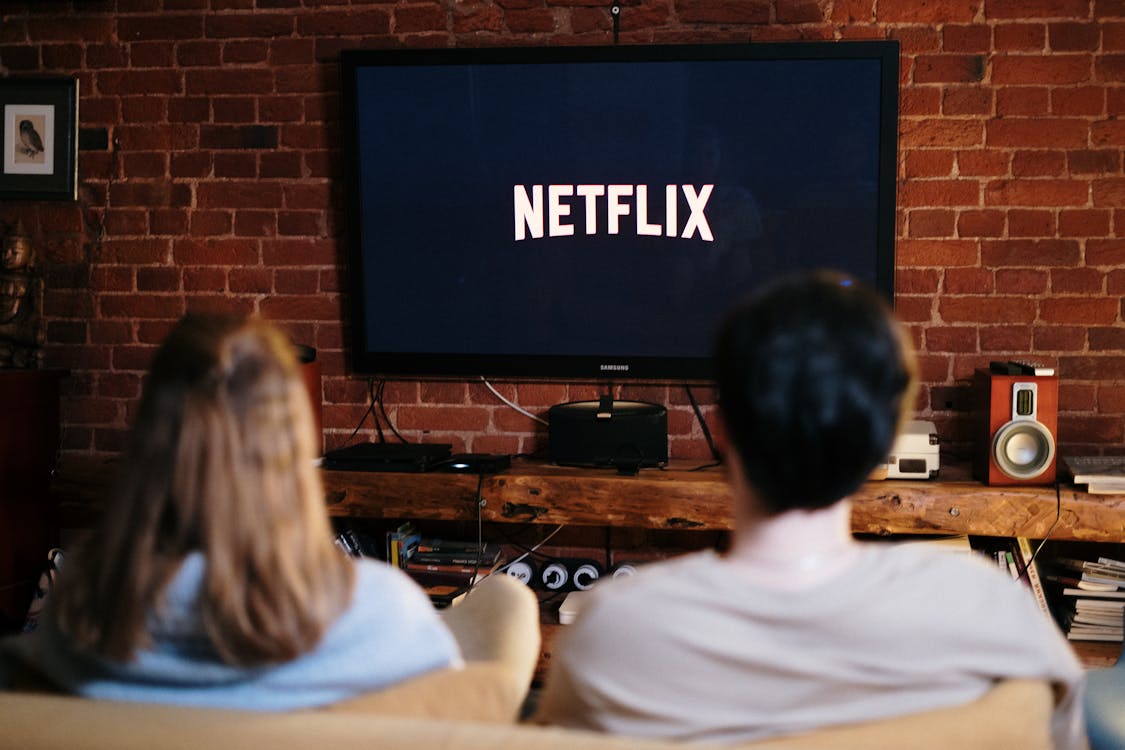
Step 3: Choose an IPTV Subscription
Not all IPTV services are equal. When evaluating a provider, look for: channel count and whether it includes the specific channels you want, server reliability (uptime guarantees of 99.9%+), stream quality (HD as standard, 4K available), a free trial period so you can test before committing, and responsive customer support. Pricing typically ranges from $10–$30 per month for quality services. Be cautious of providers offering unlimited everything for under $5 — quality and reliability are usually the trade-off.
"A free trial is non-negotiable. Any reputable IPTV provider will let you test their service before you commit. If they won't, move on."
Step 4: Install Your IPTV App
Most IPTV providers support two primary app types: dedicated branded apps (search for the provider's app name in your device's app store) or universal IPTV players like IPTV Smarters Pro, TiviMate (Android), or GSE Smart IPTV. Universal players offer more customisation and work with any provider. Once installed, you will enter your subscription credentials — typically a username, password, and server URL, or scan a QR code provided by your service.
- Fire TV: Search app store or sideload via Downloader app
- Roku: Private channel code provided by some IPTV services
- Apple TV: App Store — search for your provider or a universal player
- Android TV / Box: Google Play Store — TiviMate is highly recommended
- Smart TV: Built-in app store or IPTV Smarters web player
Step 5: Optimise Your Experience
Once your first channel loads, a few settings tweaks can make a significant difference. In your IPTV app settings, enable hardware decoding if the option exists — this offloads video processing to your device's GPU and reduces buffering. Set your default stream quality to match your connection (do not force 4K if your internet cannot reliably sustain it). Enable the electronic programme guide (EPG) using the URL your provider gives you — this adds a full 7-day TV guide to your channel list. Finally, organise your channels into favourites for the ones you watch most.
Troubleshooting Common Issues
The most common IPTV problem is buffering. This is almost always a network issue rather than a problem with the service itself. First, try switching from Wi-Fi to a wired ethernet connection. If that is not possible, move your device closer to the router or use a powerline adapter. If buffering persists, reduce the stream quality from 4K to 1080p in your app settings. If channels fail to load entirely, check with your provider — the issue is likely a temporary server outage.
- Buffering: Switch to ethernet, reduce stream quality, or restart your router
- Channels not loading: Refresh channel list, check subscription status with provider
- EPG not working: Re-enter your EPG URL in app settings, allow 24 hours for full population
- App crashing: Clear cache, reinstall app, or try a different IPTV player app